📄 zaproxy/desktop/addons/network/options/servercertificates
File: servercertificates.md | Updated: 11/18/2025
Source: https://www.zaproxy.org/docs/desktop/addons/network/options/servercertificates/
Server Certificates
This screens allows to manage and configure the root CA certificate and issued certificates.
ZAP allows you to transparently decrypt SSL connections. For doing so, ZAP has to encrypt each request before sending to the server and decrypt each response, which comes back. But, this is already done by the browser. That’s why, the only way to decrypt or intercept the transmission, is to do a ‘manipulator in the middle’ approach.
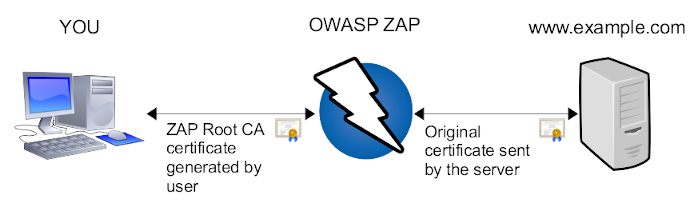
In short words, every data send to and received from the server is encrypted/decrypted by using the original server’s certificate inside ZAP. This way, ZAP knows the plain text. To establish a SSL protected session from you (your browser), ZAP is using it’s own certificate. This is the one you can create. Every certificate created by ZAP will be signed for the same server name. In the example above, ZAP will create a certificate for the server’s name www.example.com. This way, your browser will do regular SSL encryption.
Imagine you’re visiting multiple SSL protected sites. Every time your browser connects such a site, a new SSL certificate is created. But, these certificates are not trusted by anyone (because self created by ZAP). In other words, your browser will not accept such certificates in the first place. You may familiar with such situations, when your browser complains certificate error but you manually can create an exception rule for that server.
Every certificate created by ZAP is in the direct chain of trust from the “ZAP Root CA” certificate. (For more details about chain of trust, use your favorite search engine ;-) ) This means, you (your browser) only have to trust the ZAP Root CA once, and any further certificates are automatically trusted. In other words, once you’ve added the ZAP Root CA certificate to your list of trusted Root CAs, your browser doesn’t recognize the man in the middle.
Note:
On iOS 10.3 and onwards, you also need to enable full trust for the root certificate: Go to Settings > General > About > Certificate Trust Settings. Under “Enable full trust for root certificates”, turn on trust for the certificate.
Generate
When you are running ZAP for the first time then it will generate a Root CA certificate just for you. If you do not use the ‘browser launch’ feature then you have to install it within your browser or HTTP client application. See section installation for more details.
The generated Root CA certificate is valid, by default, for one year. After that period you have to create a new one.
Every generated Root CA certificate is 2048 bit strong (RSA with SHA1).
Every generated Root CA certificate starts with serial number “1”. Every generated Root CA certificate consists of the following identifiers:
CN = Zed Attack Proxy Root CA
L = 87b77fe834b0a301
O = ZAP Root CA
OU = ZAP Root CA
C = XX
As you can see, there’s a Location identifier (L) which is only a hexadecimal number. This number is constructed out of two 32bit hash codes: user’s name and user’s home directory. This way you can identify your own certificate when using multiple installations. But there’s no way, that anyone can figure out your name from this hash code.
Import
When you’re using multiple ZAP installation and you want to use the same Root CA certificate, so you can import it. Simply use one installation of ZAP to generate one Root CA certificate.
Copy the file ‘config.xml’ from ZAP’s home directory to the PC, where you want to use the same certificate and press ‘import’ to import it.
Alternatively you can use the command line options:
- -certfulldump <path> to dump the certificate from one ZAP instance
- -certload <path> to load the certificate into another ZAP instance
You can also import certificates stored in pem files as long as they include both the certificate and the unencrypted private key in the following format:
-----BEGIN CERTIFICATE-----
MIIC9TCCAl6gAwIBAgIJANL8E4epRNznMA0GCSqGSIb3DQEBBQUAMFsxGDAWBgNV
BAoTD1N1cGVyZmlzaCwgSW5jLjELMAkGA1UEBxMCU0YxCzAJBgNVBAgTAkNBMQsw
CQYDVQQGEwJVUzEYMBYGA1UEAxMPU3VwZXJmaXNoLCBJbmMuMB4XDTE0MDUxMjE2
MjUyNloXDTM0MDUwNzE2MjUyNlowWzEYMBYGA1UEChMPU3VwZXJmaXNoLCBJbmMu
MQswCQYDVQQHEwJTRjELMAkGA1UECBMCQ0ExCzAJBgNVBAYTAlVTMRgwFgYDVQQD
Ew9TdXBlcmZpc2gsIEluYy4wgZ8wDQYJKoZIhvcNAQEBBQADgY0AMIGJAoGBAOjz
Shh2Xxk/sc9Y6X9DBwmVgDXFD/5xMSeBmRImIKXfj2r8QlU57gk4idngNsSsAYJb
1Tnm+Y8HiN/+7vahFM6pdEXY/fAXVyqC4XouEpNarIrXFWPRt5tVgA9YvBxJ7SBi
3bZMpTrrHD2g/3pxptMQeDOuS8Ic/ZJKocPnQaQtAgMBAAGjgcAwgb0wDAYDVR0T
BAUwAwEB/zAdBgNVHQ4EFgQU+5izU38URC7o7tUJml4OVoaoNYgwgY0GA1UdIwSB
hTCBgoAU+5izU38URC7o7tUJml4OVoaoNYihX6RdMFsxGDAWBgNVBAoTD1N1cGVy
ZmlzaCwgSW5jLjELMAkGA1UEBxMCU0YxCzAJBgNVBAgTAkNBMQswCQYDVQQGEwJV
UzEYMBYGA1UEAxMPU3VwZXJmaXNoLCBJbmMuggkA0vwTh6lE3OcwDQYJKoZIhvcN
AQEFBQADgYEApHyg7ApKx3DEcWjzOyLi3JyN0JL+c35yK1VEmxu0Qusfr76645Oj
1IsYwpTws6a9ZTRMzST4GQvFFQra81eLqYbPbMPuhC+FCxkUF5i0DNSWi+kczJXJ
TtCqSwGl9t9JEoFqvtW+znZ9TqyLiOMw7TGEUI+88VAqW0qmXnwPcfo=
-----END CERTIFICATE-----
-----BEGIN PRIVATE KEY-----
MIICXgIBAAKBgQDo80oYdl8ZP7HPWOl/QwcJlYA1xQ/+cTEngZkSJiCl349q/EJV
Oe4JOInZ4DbErAGCW9U55vmPB4jf/u72oRTOqXRF2P3wF1cqguF6LhKTWqyK1xVj
0bebVYAPWLwcSe0gYt22TKU66xw9oP96cabTEHgzrkvCHP2SSqHD50GkLQIDAQAB
AoGBAKepW14J7F5e0ppa8wvOcUU7neCVafKHA4rcoxBF8t+P7UhiMVfn7uQiFk2D
K8gXyKpLcEdRb7K7CI+3i8RkoXTRDEZU5XPMJnZsE5LWgNQ+pi3HwMEdR0vD2Iyv
vIH3tq6mNKgDu+vozm8DWsEP96jrhVbo1U1rzyEtX46afo79AkEA/VXanGaqj4ua
EsqfY6n/7+MTm4iPOM7qfoyI4EppJXZklc/FbcV2lAjY2Jl9U6X7WnqCPn+/zg44
6lKWTnhAawJBAOtmi6nw8WjY6uyXZosE/0r4SkSSo20EJbBCJcgdofKT+VCGB4hp
h6XwGdls0ca+qa5ZE1a196dpwwVre0hm88cCQQDrUm3QbHmw/39uRzOJs6dfYPKc
vlwz69jdFpQqrFRBjVlf4/FDx3IfjpxHj0RgiEUUxcnoXmh/8qwh1fdzCrbjAkB4
afg/chTLQUrKw5ecvW2p9+Blu20Fsv1kcDHLb/0LjU4XNrhbuz+8TlmqstOMCrPZ
j48o5+RLKvqrpxNlMeS5AkEA6qIdW/yp5N8b1j2OxYZ9u5O//BvspwRITGM60Cps
yemZE/ua8wm34SKvDHf5uxcmofShW17PLICrsLJ7P35y/A==
-----END PRIVATE KEY-----
And yes, that example will work - it’s the Superfish certificate!
View
In the options dialog of ZAP you’re seeing the certificate in PEM format. The option “view” tries to use your system’s default viewing tool for “.CER” files. On Windows, this is typically the same, when exporting the certificate and double clicking on it.
Save
In the options dialog of ZAP you’re seeing the raw bytes (hexa-decimal encoded) of the certificate. Many programs are using this simple format for import/export functions. When clicking Save, these bytes are saved to disk. This is equal to selecting all and doing CTRL+C (copy to clipboard) and save it into a new .CER file (which is simple text as you see in the dialog).
Each ZAP instance is using it’s own root certificate. Of course, you can import root certificates, to use them on multiple machines. When running, there will be sub-certificated created, each time an HTTPS resource is requested. That means, the Root CA certificate is used as an issuer.
The issued certificates are valid, by default, for 368 days.
The issued certificates is 2048 bit strong (RSA with SHA1).
The issued certificates has a random serial number. The issued certificates consists of the following identifiers:
CN = www.example.com
E = zaproxy-develop@googlegroups.com
C = XX
O = ZAP
OU = Zed Attack Proxy Project
Side note: Each time you start ZAP, internally a random serial number offset is generated. The issued certificates will use this offset plus an increasing counter. For example, first the issued certificate has serial number 2314, the second one 2315, the third one 2316 and so on. The reason for this is simple: browsers are also caching certificates. When you restart ZAP but don’t restart your browser, it could happen, that the browser sees the same certificate but with different serial number. In the end, the browser would complain about and reject the certificate. By using the random offset (internally 48bit random number), the chances are 1 to 281.474.976.710.656 that when restarting ZAP, the serial number offset is a different one. So in the rare case, you are discovering that you browser complains about a broken serial number within the certificate, just restart your browser ;-).
CRL Distribution Point
Sometimes, a valid certificate is not enough to have a working TLS MITM. For example, libcurl on Windows uses schannel as its backend, which by default will check if a valid Certificate Revocation List Distribution Point is provided in the certificate, and try to contact and retrieve this CRL. If you’re lucky the binary is verbose, and the error message will be clear enough :
PS C:\Users\alice> curl.exe https://ifconfig.me/
curl: (35) schannel: next InitializeSecurityContext failed: Unknown error (0x80092012) - The revocation function was unable to check revocation for the certificate.
This may also manifest as a TLS Handshake Failure at the network level :
6 0.023470 192.168.56.104 1.2.3.4 TLSv1.2 273 Client Hello
8 0.033465 1.2.3.4 192.168.56.104 TLSv1.2 144 Server Hello
11 0.033875 1.2.3.4 192.168.56.104 TLSv1.2 527 Certificate
13 0.084581 1.2.3.4 192.168.56.104 TLSv1.2 401 Server Key Exchange, Server Hello Done
16 0.158961 1.2.3.4 192.168.56.104 TLSv1.2 61 Alert (Level: Fatal, Description: Handshake Failure)
This option enables you to specify a CRL Distribution Point that will be added in each of the generated certificates. Obviously, you need to create a custom Root Certificate Authority, using for example https://github.com/kaysond/spki , a wrapper for OpenSSL that generates and manages a simple PKI suitable for small deployments, support CRLs and OCSP, and make the CRL available to the victim client, using for example a tiny HTTP server.
Install ZAP Root CA certificate
Any HTTPS client you want to use, has to know the ZAP Root CA certificate as ’trusted root certificate’. Typically you have to install manually the ZAP certificate into your browser’s list of trusted root certificates.
Windows / Internet Explorer
The easiest way is to click on View and choose ‘Install certificate’. Alternatively, you can Save your generated certificate and double click the .CER file. When doing so, the regular Windows wizard for certificate installation assistance is popping up. In this wizard manually choose the certificate store. Do NOT let Windows choose automatically the certificate store. Choose ’trusted root certificates’ as store and finalize the wizard.
You can also copy the saved file and install it in other computers as needed.
After successfully installation, you can check the certificate.
- Go to Internet options
- Tab Content
- Click certificates
- Click tab trusted root certificates
- The ZAP Root CA should be there
Mozilla Firefox
Firefox is using it’s own certificate store. That’s why you have to import it twice, when you’re using both browsers on Windows. Installation and late on validation is done in the same preferences dialog:
- Go to Preferences
- Tab Advanced
- Tab Cryptography/Certificates
- Click View Certificates
- Click Authorities tab
- Click Import and choose the saved zap_root_ca.cer file
- In the wizard choose to trust this certificate to identify web sites (check on the boxes)
- Finalize the wizard
Attention, there are risks!
When adding self generated Root CA certificates to your list of trusted root certificates, everyone with the root certificate can smuggle data into your system (browser). In other words when you’re not testing in a safe environment, but on productive machines, be aware that you’re opening an additional attack vector to your system.
| | | | | --- | --- | --- | | | Network | the introduction to Network add-on |